 RelayCast


 + more
Go live.
Everywhere.
Your OBS stream. All your platforms.
One simple panel.
Free. No account. No subscription.
- Up to 1080p60
- Mic + desktop audio
- Encrypted saved keys
A little setup.
Then you’re live.
Full setup guide Install
Run the installer. Restart OBS.
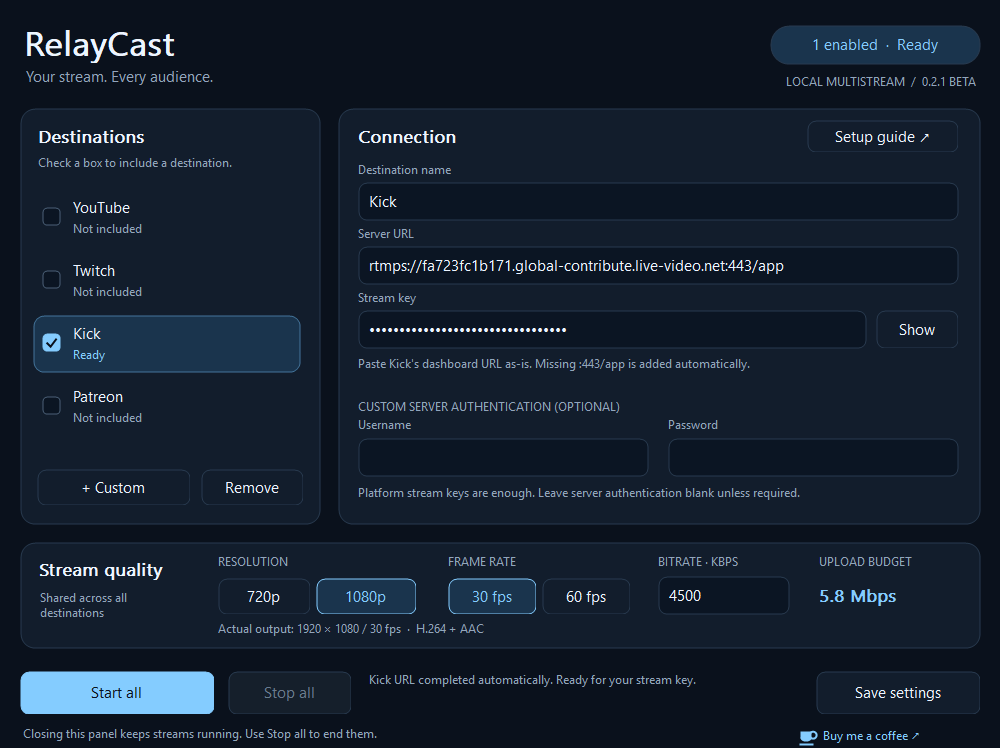
Open Tools → RelayCast.Connect
Paste your stream keys.
Select your platforms and quality.Go live
Check picture and sound.
Click Start all.
Where do I find my stream keys?
Copy your key from YouTube Live Control Room. RelayCast has the server prefilled. Check visibility and publish from YouTube if automatic start is off.
YouTube guide ↗In Creator Dashboard → Settings → Stream, copy your Primary Stream Key. Paste it into RelayCast; the server is prefilled.
Twitch guide ↗Copy both the Stream URL and Key from Kick’s creator dashboard. RelayCast completes recognized bare ingest URLs automatically. Set your title and category in Kick.
Kick guide ↗Create a Live and choose Other streaming service. Paste that session’s URL and key. Start RelayCast, then click Start Live on Patreon. Each Live needs fresh details; eligibility applies.
Patreon guide ↗Picture, sound & stopping your stream
1080p60: Set OBS’s output resolution to 1920×1080 and its frame rate to 60. RelayCast won’t upscale a smaller output.
Audio: Unmute your sources and enable track 1 in Advanced Audio Properties. Kick needs stereo at 48 kHz or lower. Every destination gets the same picture and audio.
Stop: Use Stop all in RelayCast. Closing its panel keeps streams running; OBS’s normal streaming button is separate.
Requirements & upload speed
Windows x64 · OBS 32.2.2 tested.
Software H.264 encoding uses CPU. SDR only. Each destination uses its own share of your upload. Platform limits still apply.
Allow 25% headroom above your video and audio bitrate.
4 destinations · about 18.6 Mbps before headroom
v0.2.1 · Free beta
Unsigned installer. Local video and audio tests passed;
real-platform broadcasts still need testing.